DOCS / GrandMA2 / Connection (Telnet)
Integration Guide

Connecting via Telnet

A step-by-step guide to establishing a secure communication link between GrandMA2 and ShowTime Player.

Step 01

Console Configuration

Before using the player, you must enable external login permissions on your GrandMA2 console or onPC.

  • Navigate to Setup Press the [Setup] key on the console command wing.
  • Global Settings Select the "Global Settings" tab in the Console section.
  • Enable Telnet Locate the "Telnet Login Enable" setting and toggle it to On (yellow).
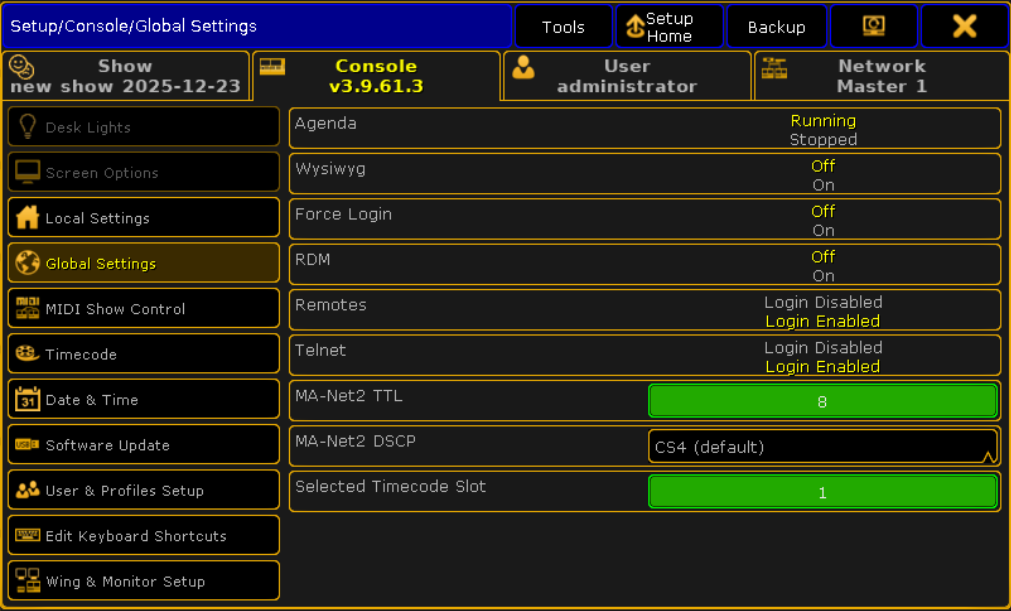
MA2 Global Settings
Ensure Telnet Login is highlighted
Step 02

Activate Player Plugin

Now, enable the integration module inside ShowTime Player.

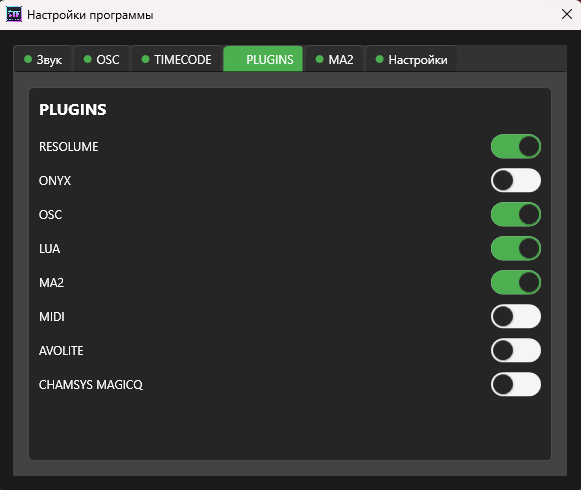
  • Settings Menu Open the main settings menu in ShowTime Player.
  • Plugins Section Navigate to the "Plugins" category.
  • Toggle Switch Turn on the "MA2" plugin switch. This will unlock the configuration tab.
ShowTime Player Plugins
Enabling the MA2 Module
Step 03

Connection Parameters

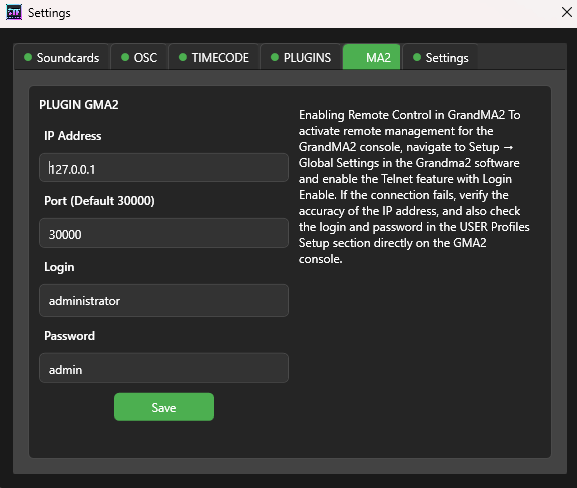
Go to the newly appeared MA2 Tab in settings and configure your network details.

  • IP Address: Enter your Console or onPC IP.
  • Port: Default is 30000. Usually, this does not need changing.
  • Login/Password: Default is administrator / admin.
Where is my IP?
Console: Setup > Network > MA Network Configuration.
PC: Check your network adapter settings or the MA2 window title bar.
Security Tip:
To restrict access, use the user guest (default password is empty). This gives the player enough permission to play shows without full admin access.
Network Configuration
Enter IP and Login Credentials
Step 04

Save & Verify

Complete the setup to start controlling your lights.

  • Save Settings Click "Save" and Restart ShowTime Player to apply changes.
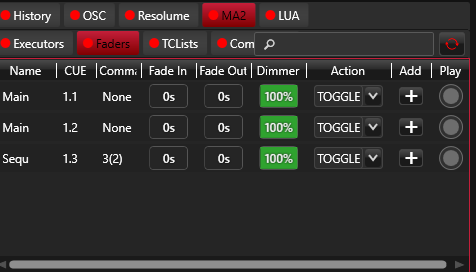
  • Check Connection Upon restart, return to the MA2 tab. You should see a list of loaded Executors.
  • Success If you see the executors, the bidirectional link is active.
Connected State
Executors successfully loaded from console