
How to Use the Generator
Learn how to properly prepare a fixture manual and upload it to the neural network to get a perfect profile.
1. Data Preparation and Upload
You don't need a perfect electronic document. Thanks to our Optical Character Recognition (OCR) module, the neural network can read data directly from photos and screenshots. Choose the format that works best for you:
📄 PDF Document
Upload the official fixture manual. The AI will automatically find the pages with DMX charts and ignore technical clutter. *Recommended for small files.
📸 Manual Photo
You can take multiple photos of the paper manual with your phone or screenshots of the chart from your screen (JPG format). You will need to upload all the taken photos by selecting them all and clicking analyze. The more photos you take, the more accurate the fixture will be, but no more than 11 photos! This is the most reliable way to avoid encoding errors.
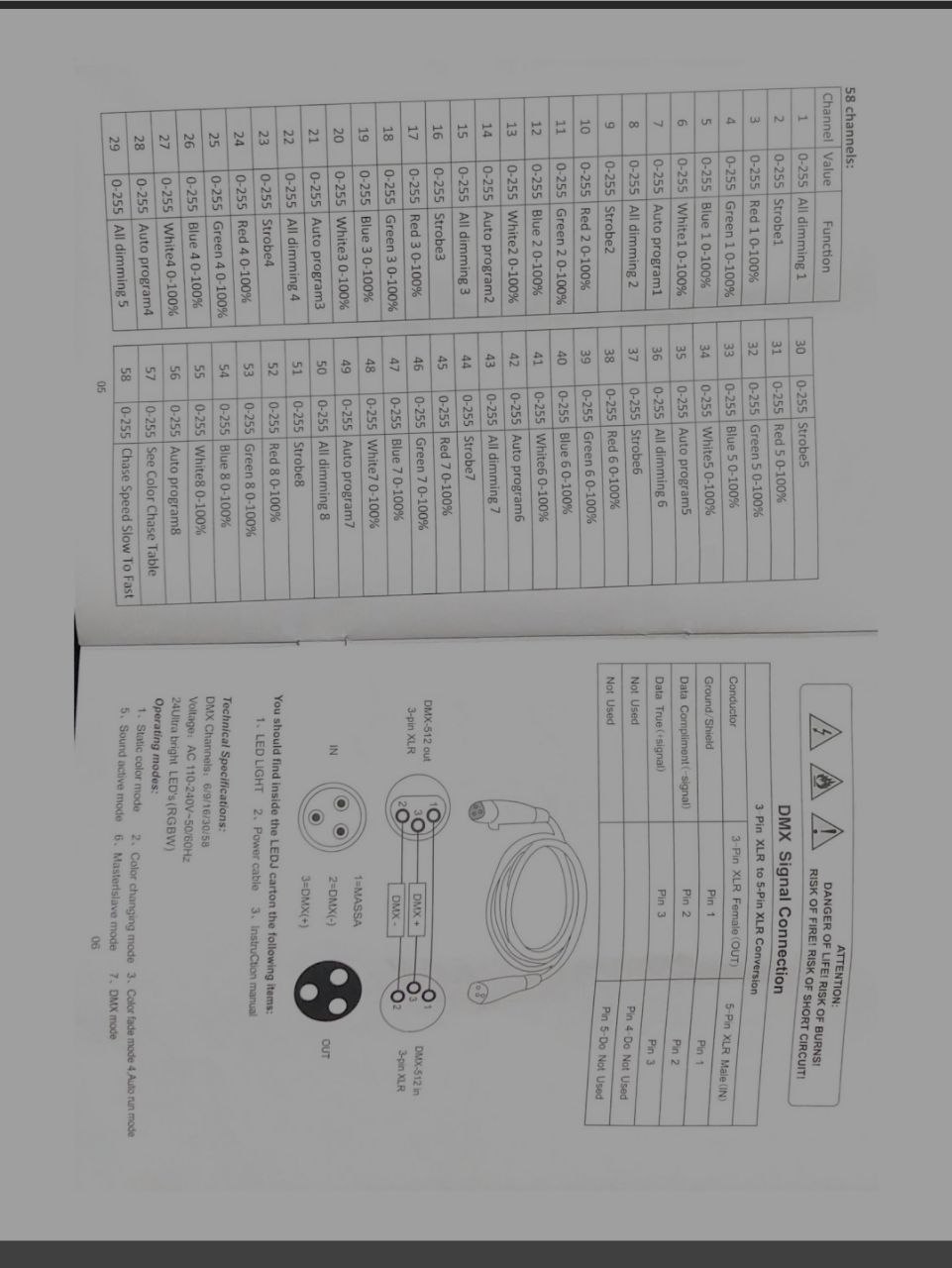
Fig 1. Example of an uploaded photo
📝 Text File (TXT)
Copy the channel description from the manufacturer's website and paste it into a standard text file (TXT). The neural network will analyze the unstructured text and build the correct logic.
2. Analysis and Generation
Immediately after uploading the file, the neural network will begin processing the data. Depending on the document size, this can take anywhere from a few seconds to a minute.
Important: If the system encounters a complex structure or locked encoding while processing a PDF file, generation may fail with an error. In this case, please refer to the FAQ section below.
FAQ Quick answers to common questions
Q: I upload a PDF, but I get a generation error. What should I do?
A: Some PDF files may fail to read for several reasons: the file size is too large (tens of megabytes), there is DRM protection, the manual uses custom Chinese fonts that break text extraction, or the source file from the manufacturer is simply corrupted.
Solution: Take screenshots or photos of the DMX address table directly from your screen. Save them in JPG format and upload them to the generator. The system recognizes images perfectly!
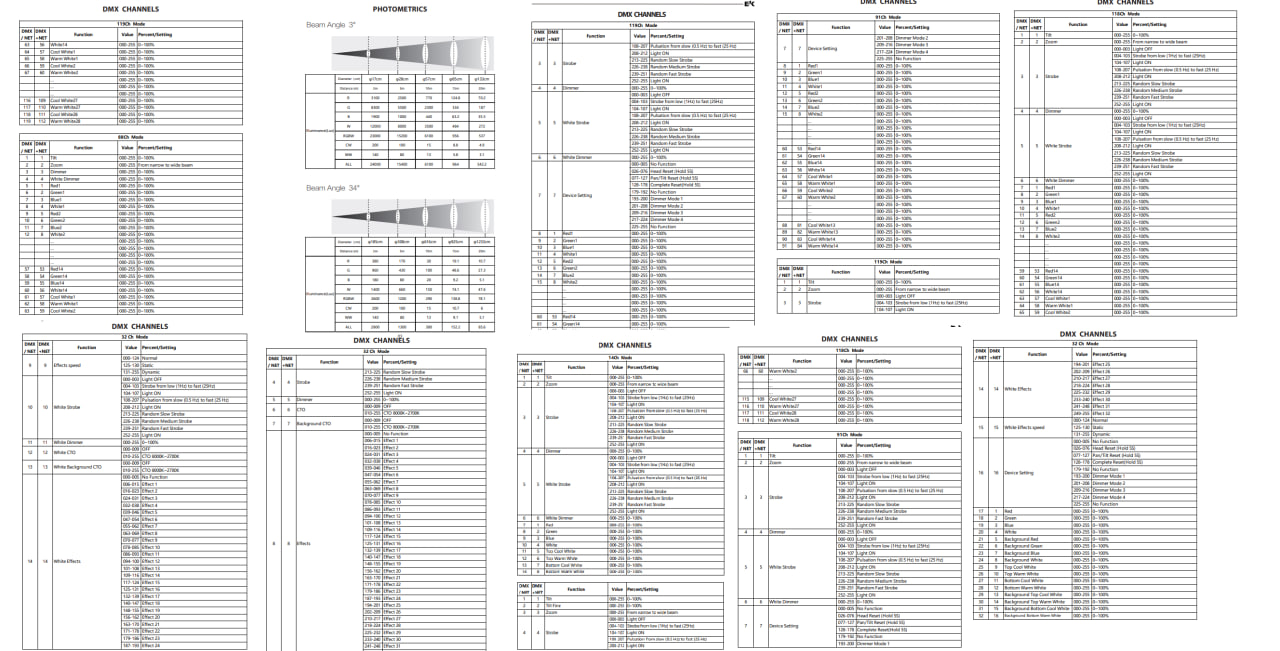
Fig 2. Ideal format: just the channel table in JPG (tablica.jpg)
Q: Will HOG 4 consoles be supported?
A: No, direct file generation for the Hog 4 console family is not supported and is not planned for the foreseeable future.
High End Systems' library format is closed and strictly proprietary. The OS developers encrypt the libraries and do not provide compilation keys to third-party projects. Creating a working file bypassing their official software is technically impossible. We recommend using the built-in Fixture Builder on the console itself.
Still have technical questions?
If you encounter an unusual error or the neural network misidentifies your fixture, please contact our support team.
Ask a Question on Telegram