DOCS / Chamsys MagicQ / Connection

Integration Guide

Chamsys MagicQ

Step-by-step instructions for synchronizing and remotely controlling Chamsys MagicQ with ShowTime Player via Web Server and OSC.

Step 01

MagicQ Configuration

Enable network services in MagicQ to allow external communication with the player.

  • Remote Settings Go to Setup > Settings > Network. Set Remote Control Mode to "Remote Access".
  • Web Server Enable Web Server (Yes) and check the port (default is 80). This is required to retrieve Cue Lists.
  • OSC Setup Enable OSC Mode (Rx & Tx). Ensure the OSC Receive Port (default 8000) matches the player settings.
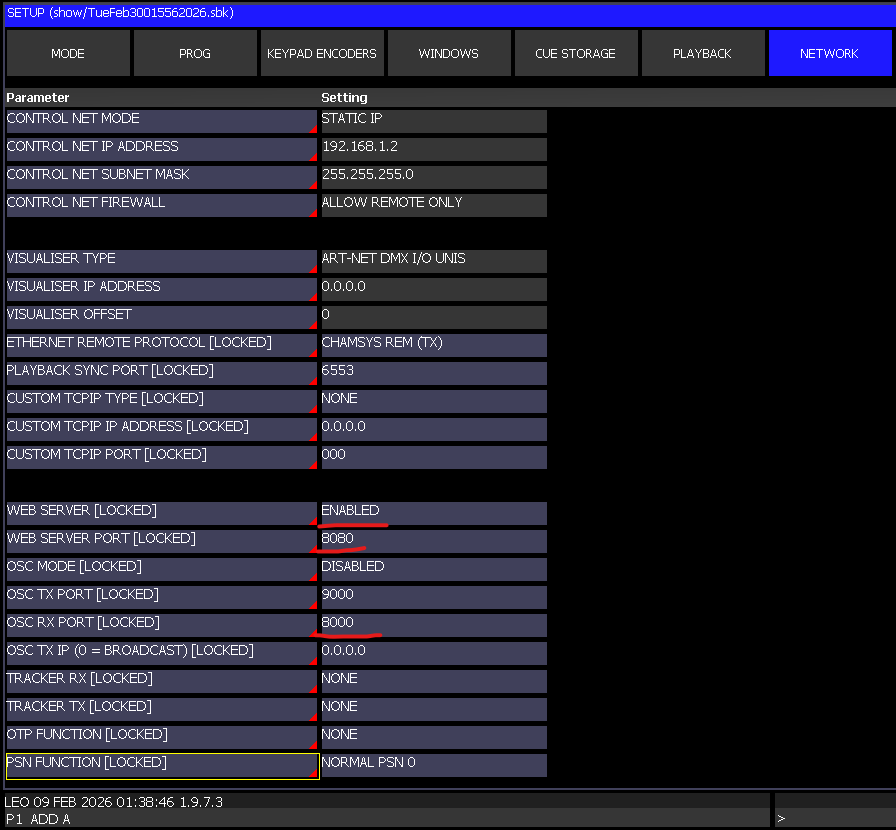
MagicQ Network Settings
Activating Web Server and OSC in the console
Step 02

Activate Plugin

Enable Chamsys support within the ShowTime Player interface.

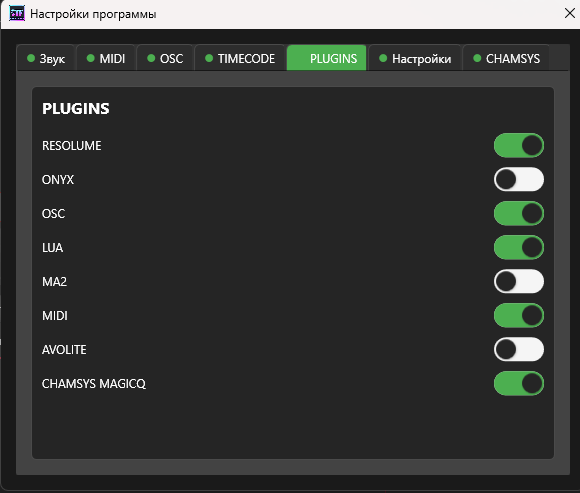
  • Plugins Menu Open the player settings and navigate to the Plugins section.
  • Enable Toggle Locate the Chamsys plugin and turn it on. This unlocks the connection settings tab.
ShowTime Player Chamsys Plugin
Enabling the Chamsys module in settings
Step 03

Network Parameters

Synchronize ports and IP addresses to enable command execution and cue list retrieval.

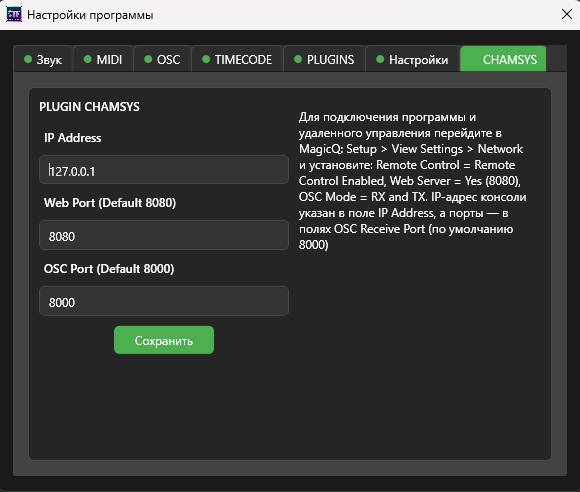
  • IP Address: Enter the IP of your console or PC running MagicQ. Use 127.0.0.1 if both apps are on the same PC.
  • Web Port: Must match the Web Server port in MagicQ (usually 80).
  • OSC Ports: Ensure Send/Receive ports match the console settings exactly.
Pro Tip: All ports in MagicQ and ShowTime Player must be identical for the two-way sync to work correctly.
Connection Config
Configuring IP and interaction ports
Step 04

Restart and Status

A restart is required after saving settings to initialize the connection protocol.

  • Restart Save changes and restart ShowTime Player.
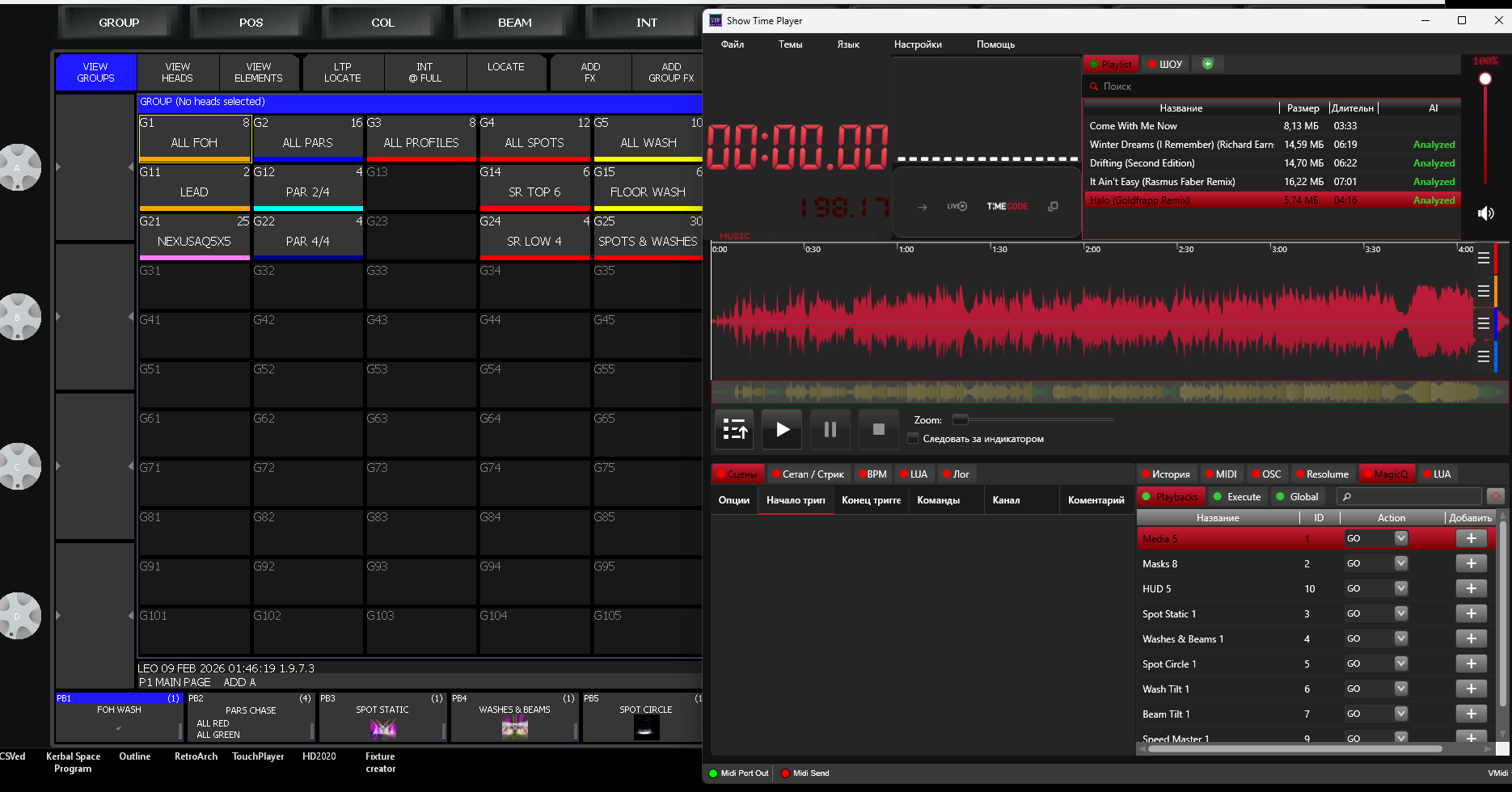
  • Connection Indicator Go to the Chamsys tab. Green indicators mean the connection is live.
Connected Status
Green tabs confirm active communication
Step 05

Sync Complete

Cue Lists in the player and MagicQ are now fully synchronized.

  • Remote Control You can now trigger cues and control the console directly from the player.
Success! Configuration is complete. You may proceed to the next lesson.
Sync Success
Cue lists are synchronized and ready for the show