Import to GrandMA2
Learn how to properly add a generated XML fixture from showbackstage.ru to GrandMA2 series consoles (standard mode starting from version 3.9.60, but older versions are also supported).
1️⃣ Download XML Profile
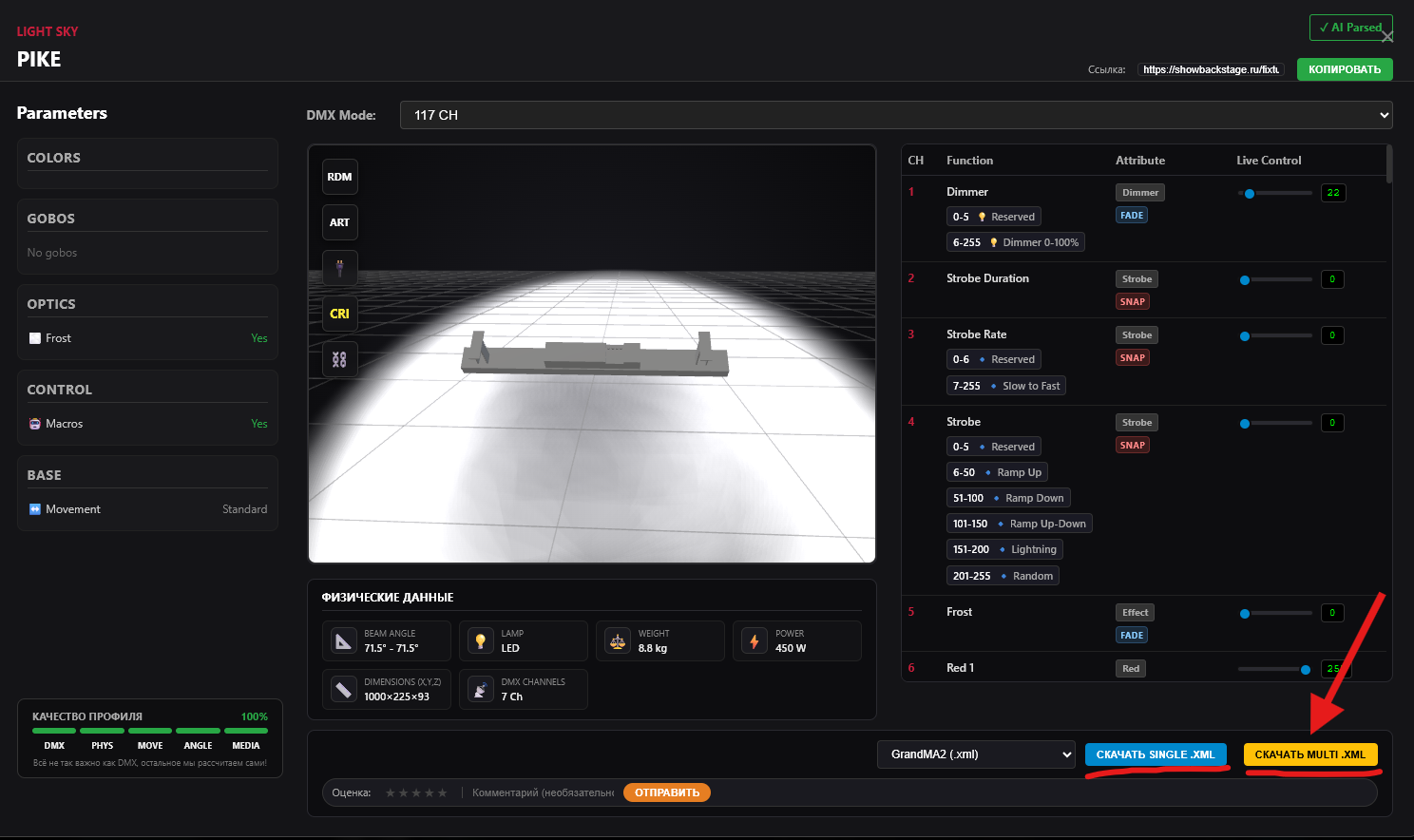
After successful generation, select the proprietary format GrandMA2 (.xml) in the modal window and click the download button (Multi or Single depending on the device type).
2️⃣ Move File to USB Drive
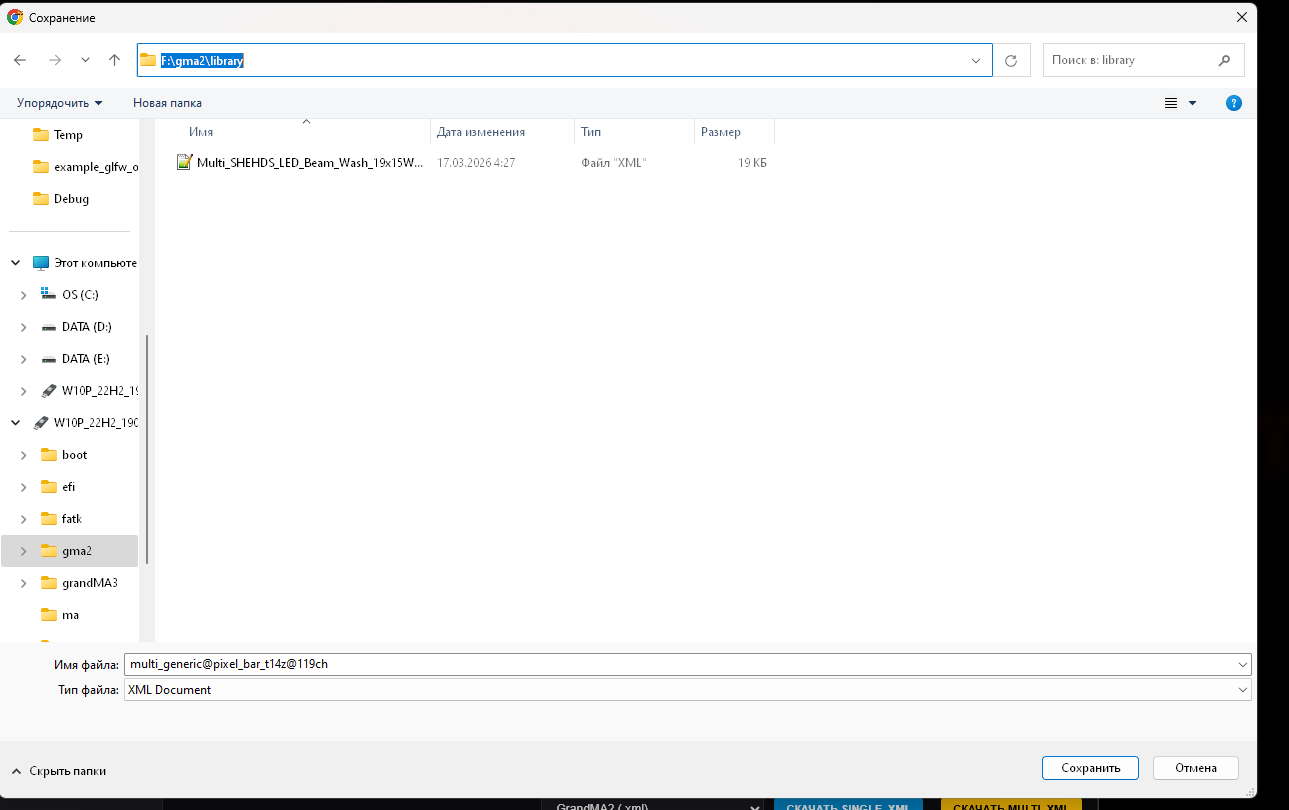
Copy the downloaded file to your USB flash drive. The path on the flash drive must be exactly as follows:
Usually, the GrandMA2 console (or onPC software) creates this folder structure automatically upon the first USB connection. If it doesn't exist, simply create these folders manually.
3️⃣ Enter Setup Menu
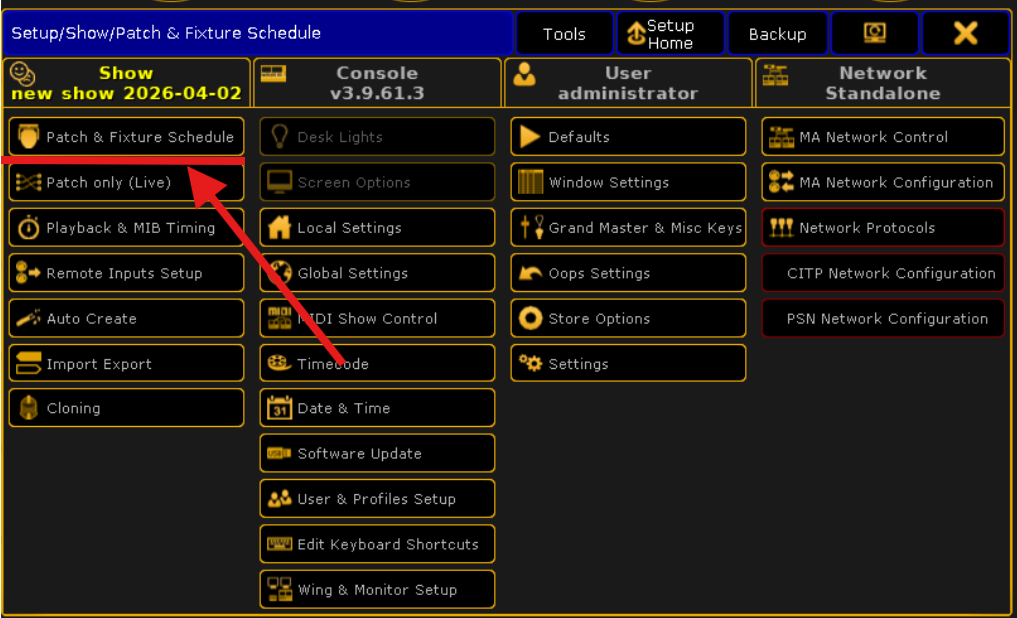
Insert the USB drive into the console. Press the SETUP hard key or screen button to enter the system menu.
4️⃣ Create a Fixture Layer
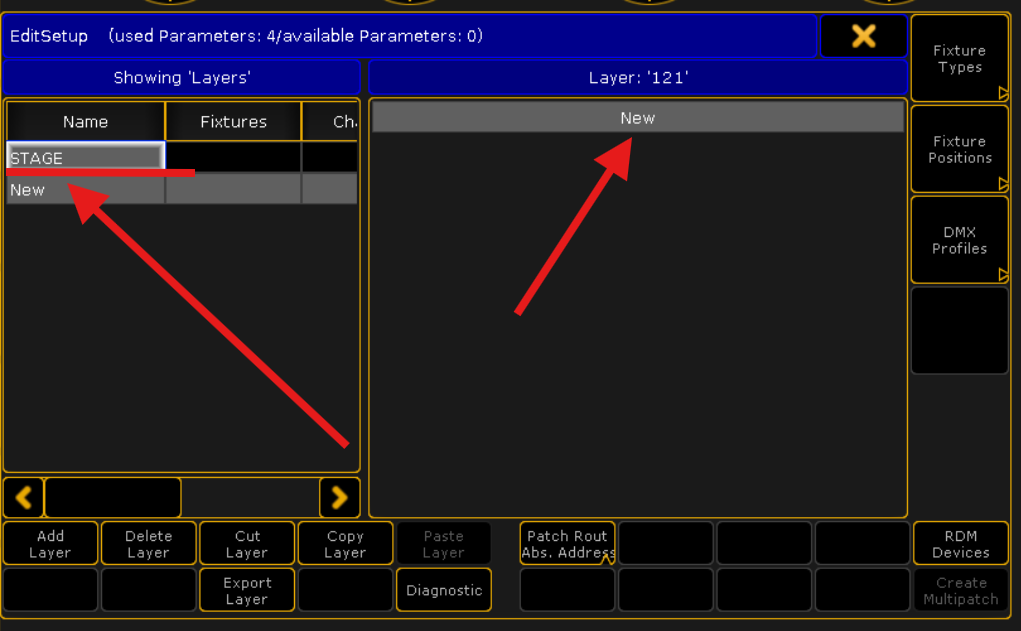
Go to the Patch & Fixture Schedule menu. On the left side of the screen, create a new fixture layer (type a name in the Layer column) or select an existing one. Then, on the right side of the screen, click the NEW (or Add New Fixtures) button to open the Fixture Wizard.
5️⃣ Add From Library
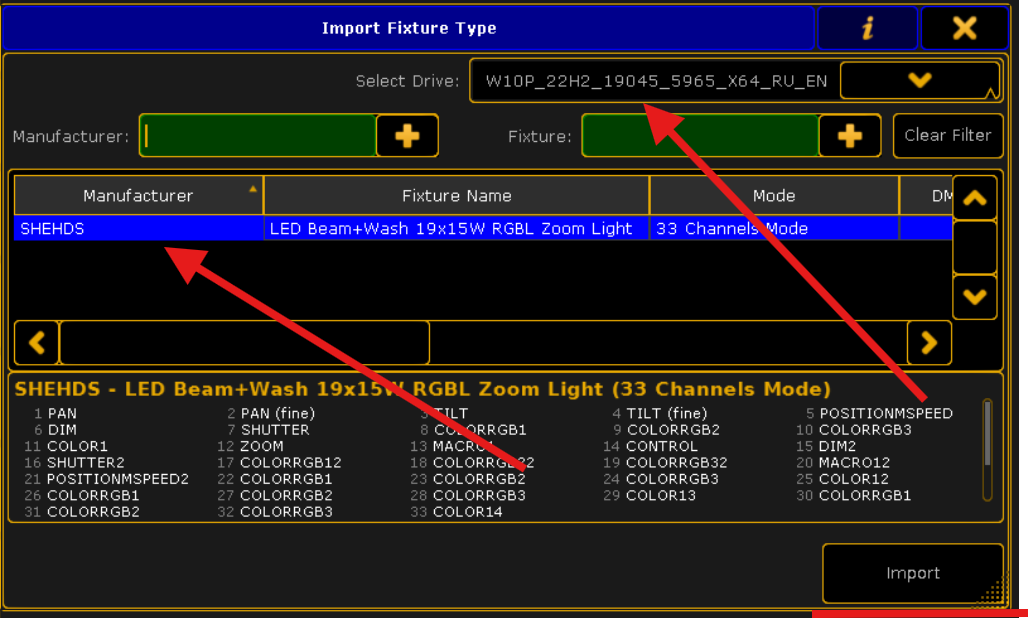
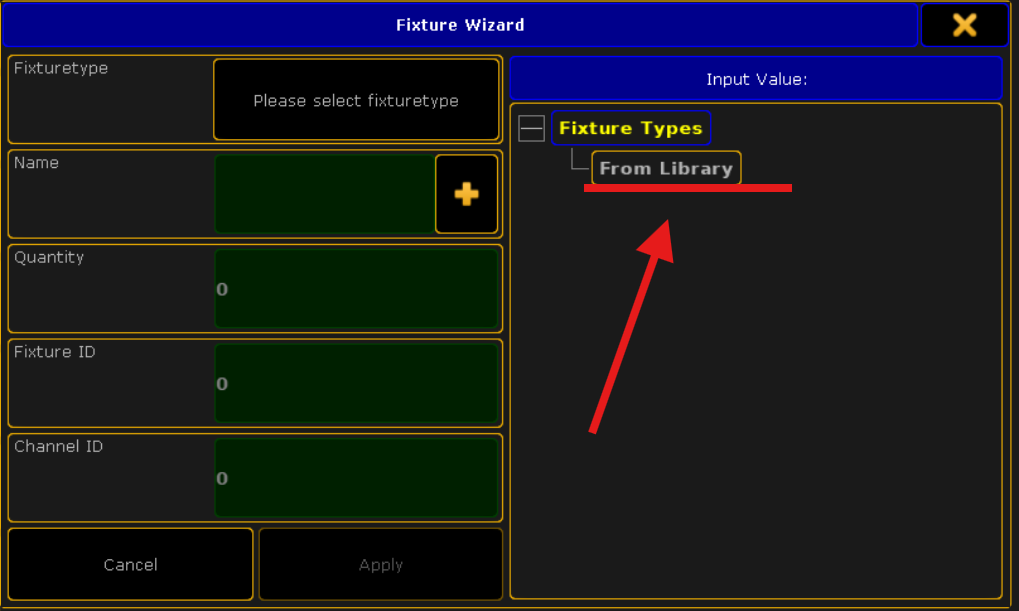
In the Fixture Wizard window that opens, click the From Library button. This will open the profile library. Pay attention to the drive selection button in the top right corner (it usually says Internal). Click it and switch to your USB flash drive. Now find your fixture by Manufacturer and Name, select the desired mode (DMX mode), and click Import.
6️⃣ Configure and Finish Patching
Back in the Fixture Wizard, specify the Quantity of fixtures, the starting Fixture ID, and the DMX Address. Click Apply to add them to your layer. Finally, close the Patch & Fixture Schedule window using the cross in the top right corner, and be sure to confirm the changes by clicking Save in the pop-up dialog.