Import to GrandMA3
Learn how to properly add a generated GDTF fixture from showbackstage.ru to GrandMA3 series consoles (standard mode from version 2.3.2.0 and above).
1️⃣ Download GDTF Profile
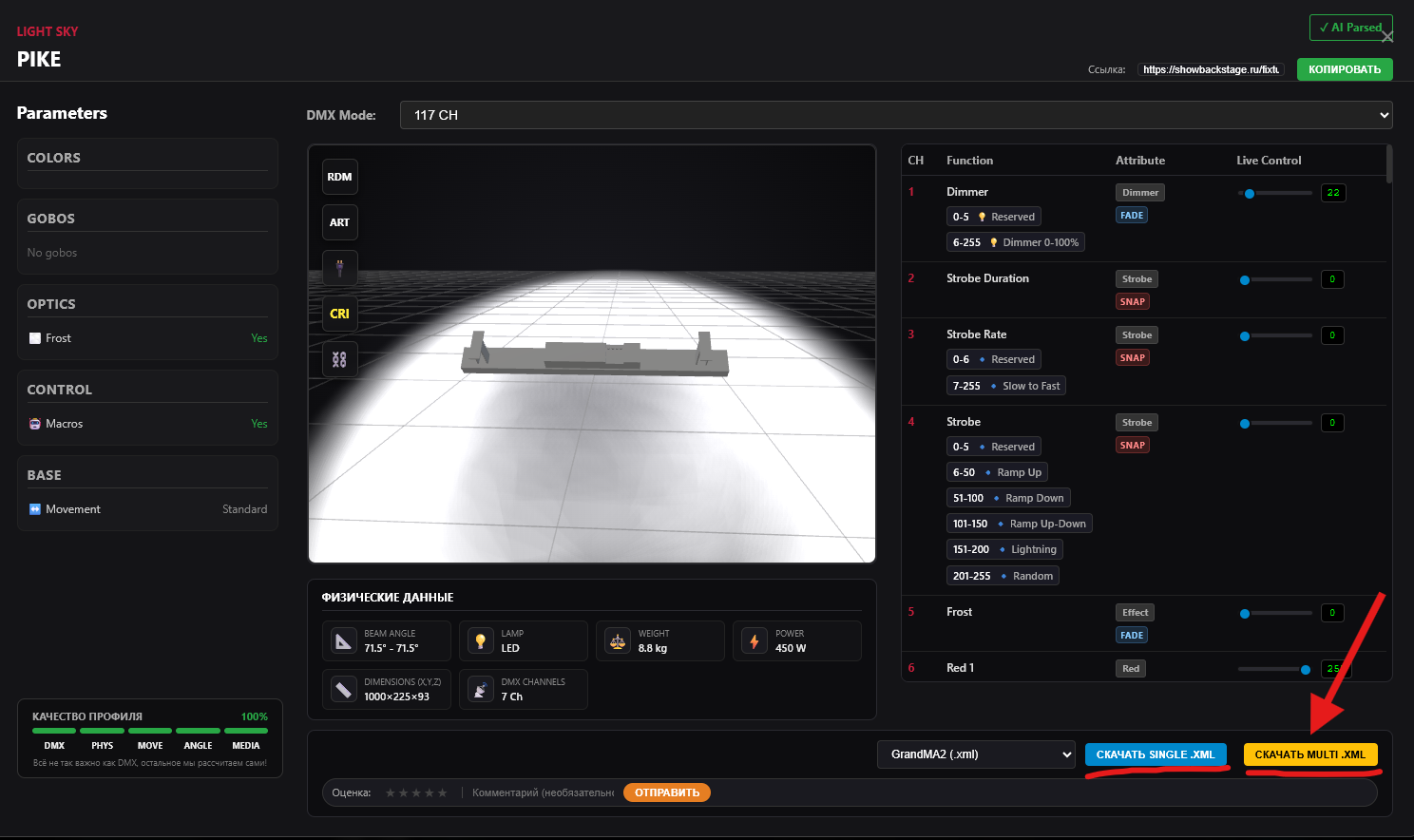
After successful generation, select the universal format GDTF in the modal window and click the download button for GrandMA3 (.gdtf).
2️⃣ Move File to USB Drive
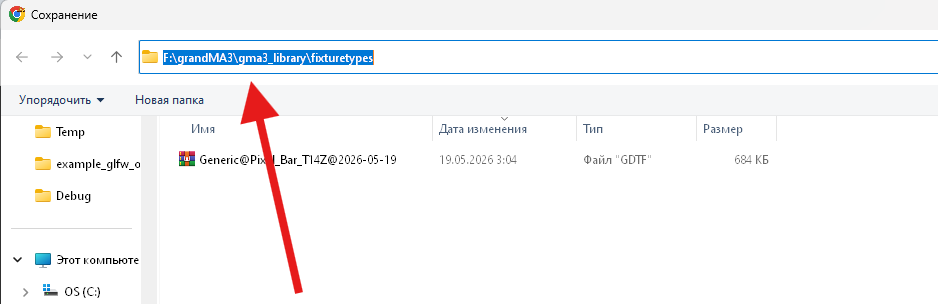
Copy the downloaded file to your USB flash drive. The path on the flash drive must be exactly as follows:
Usually, the GrandMA3 console (or onPC) creates this folder structure automatically upon the first USB connection. If it doesn't exist, simply create these folders manually.
3️⃣ Enter Patch Menu
Insert the USB drive into the console. Open the main Menu of the console and navigate to the PATCH section.
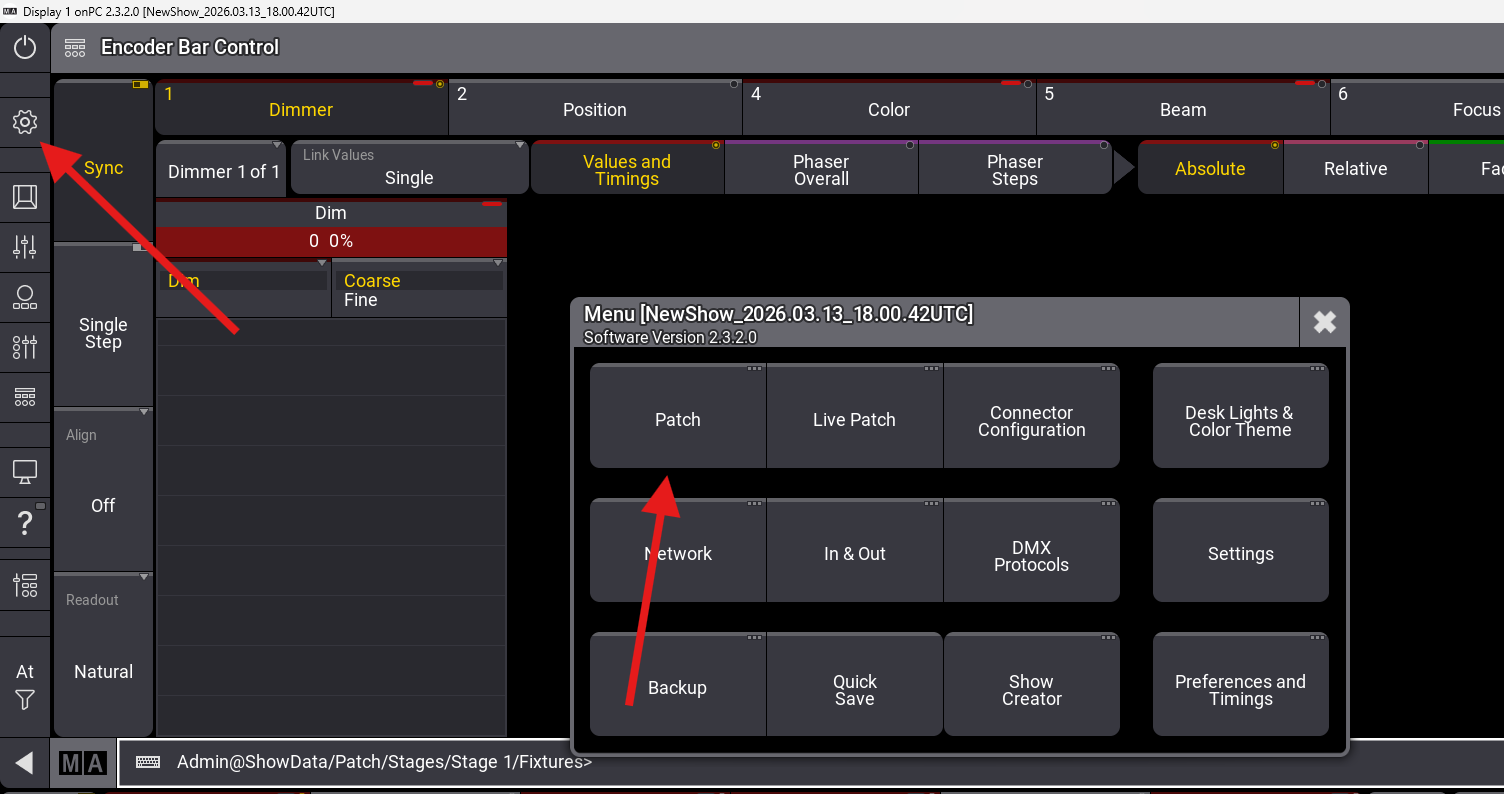
4️⃣ Adding a New Fixture
In the opened patcher window, click on the Insert New Fixture (or New Fixture) button to proceed to device selection from the library.
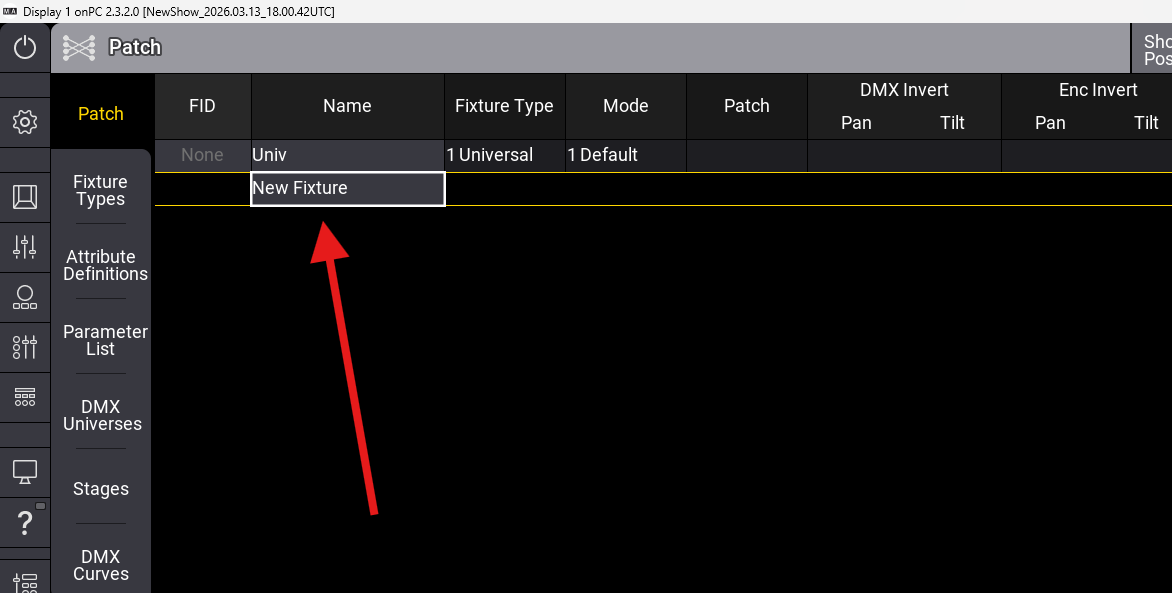
5️⃣ Select Drive and Search
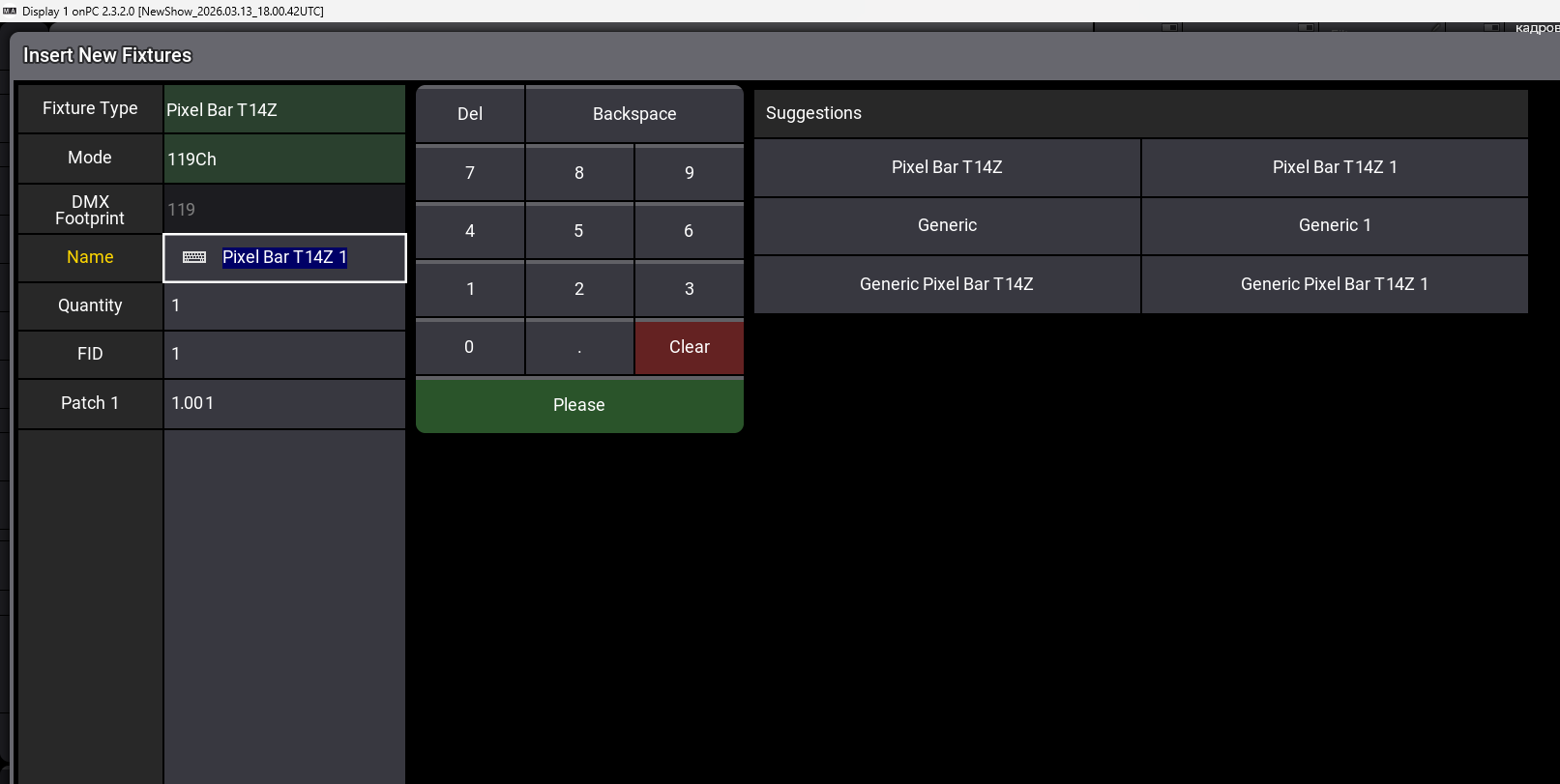
In the selection window, switch to the Library tab. Then, at the top where the Internal source is indicated, switch to your USB flash drive. You will see your fixture and all the generated modes available for it.
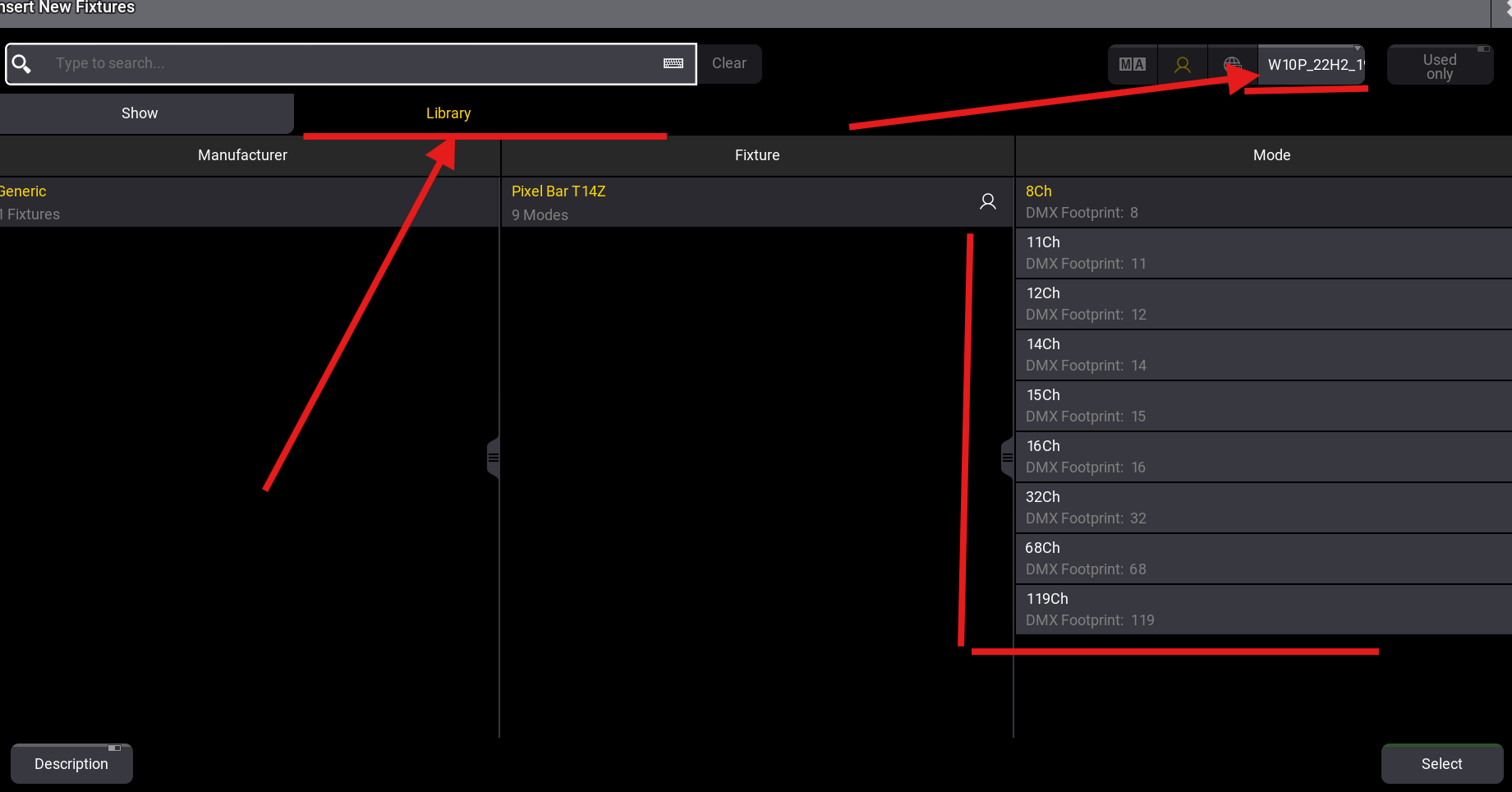
6️⃣ Finish Patching
Select the desired fixture mode, specify the Quantity, and set the starting DMX address. Click Apply and patch the fixtures as usual. Installation is complete!