SHOWBACKSTAGE | Professional Show Player
DOCS / Resolume Arena / Connection to Resolume
Integration Guide

Connection to Resolume

Step-by-step instructions for configuring the OSC connection between Resolume Arena and ShowTime Player.

Step 01

Enable Plugins

First, enter the settings of the SHOWTIMEPLAYER program and go to the Plugins tab.

  • You need to enable the Resolume and OSC plugins.
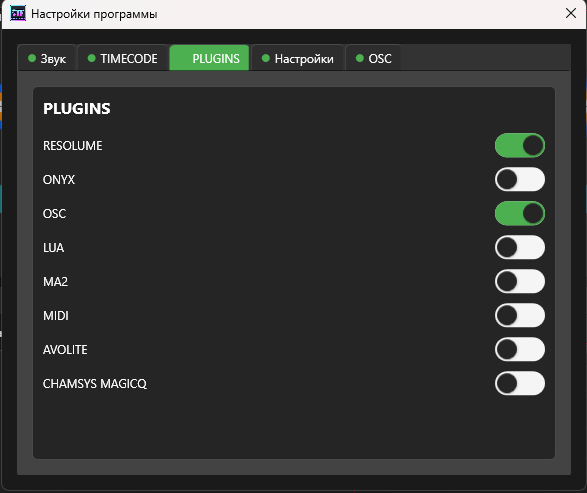
Enable plugins
Enabling the necessary modules
Step 02

Resolume OSC Settings

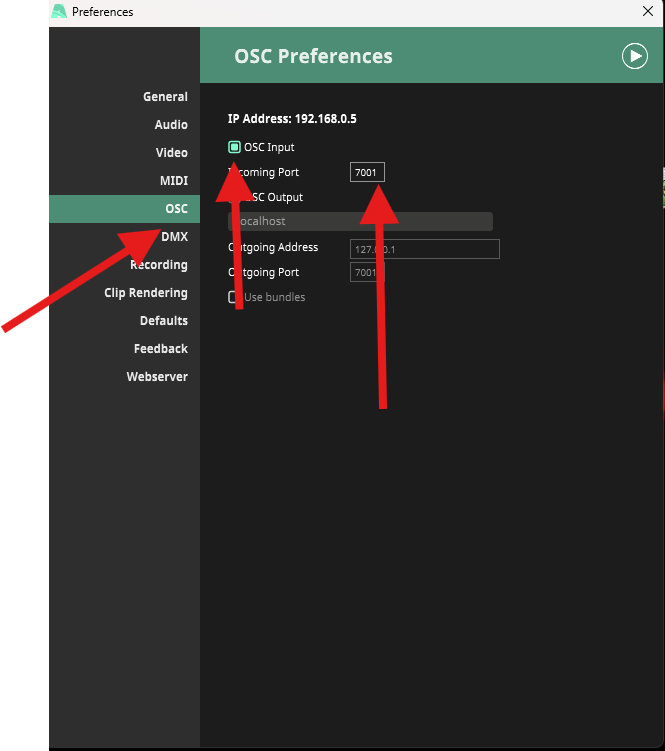
The next step is to go to the Resolume settings and go to the OSC tab.

  • Here we see the IP address of the PC.
  • We need to set the OSC port. The port must be open, check that it is accessible.
Resolume OSC Settings
Setting the port in Resolume settings
Step 03

Player Port Configuration

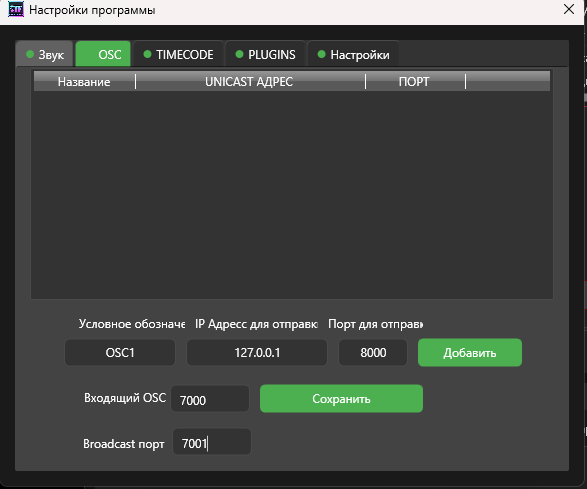
Then go to the OSC tab in SHOWTIMEPLAYER.

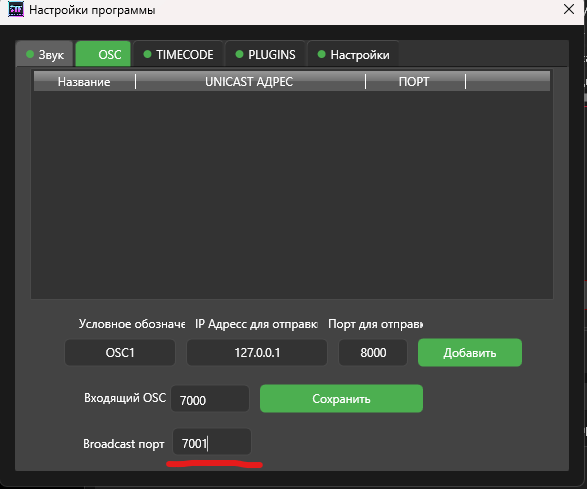
  • At the bottom, we see the Broadcast port. This is the port to which the program broadcasts commands over the network to all PC addresses.
  • Let's say you have many stations and PCs on the network, and it will send to all addresses via broadcast. You may have Resolume or other programs running on this port; all of them will receive data.
OSC tab in SHOWTIMEPLAYER
Broadcast port
Broadcast settings
Step 04

Unicast Addressing

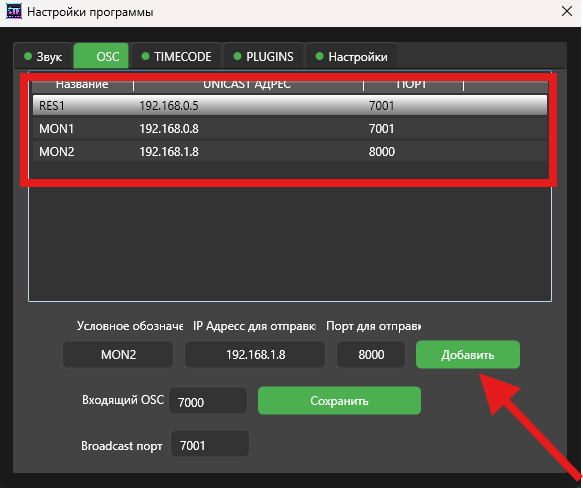
If you want to configure sending only for Resolume, so that the data is sent only to a specific PC.

  • You need to add a unicast address. Commands will be sent only to it.
  • If you have several Resolume instances or other OSC programs, you can assign them separate addresses and ports.
Unicast address
Adding a specific recipient IP address