SHOWBACKSTAGE | Professional Show Player
DOCS / Resolume Arena / Using LUA Scripts
Advanced Scripts

Using LUA Scripts

Create smooth Fade In / Fade Out transitions, dynamic strobe effects, and looped animations using powerful micro-scripts for Resolume.

Step 01

Activation & Commands

Before you begin, ensure that the LUA plugin is enabled in the player settings.

  • Go to the LUA editor located below your timeline.
  • Open the commands tab. Use the filter at the top and select Resolume to display only the relevant functions.
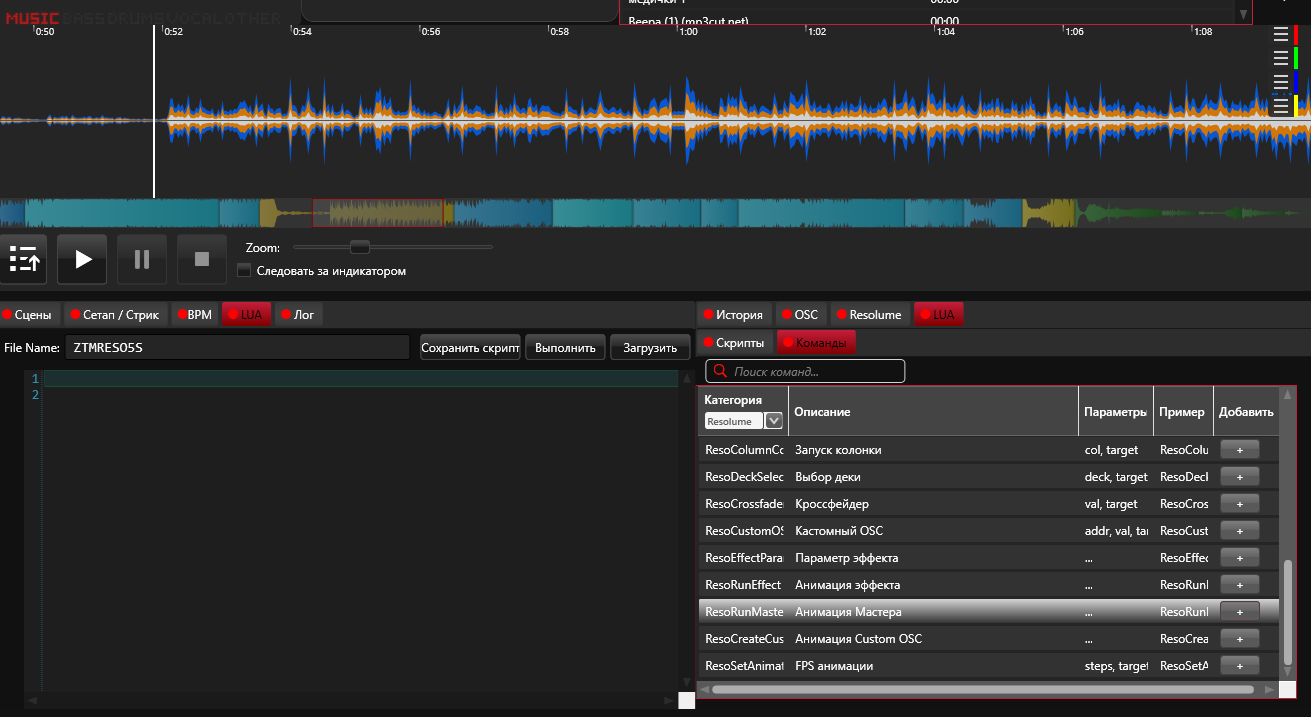
LUA Command Selection
Command filtering window for Resolume
Step 02

Effect Constructor

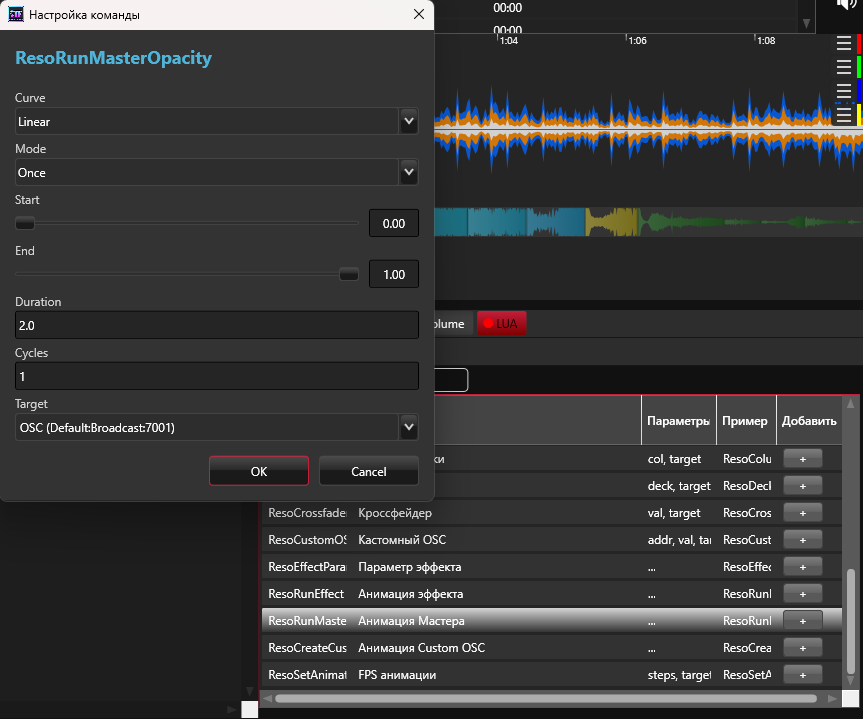
Let's make a smooth fade-in for a clip. Select the ResoRunMaster command and click +.

  • Curve: Sets the function graph. Linear — for a standard fade. Sine or Exponential will make the parameter pulse or accelerate smoothly.
  • Mode: Once (play once from start to end), Loop (continuous repetition, e.g., pulse 0→100→0→100), Bounce (back and forth).
  • Start / End: The effect range in %. For example, 0 and 100 for Fade In. If you want a smooth blackout — set 100 and 0.
  • Duration: Time in seconds. For example, 2 seconds for a smooth clip reveal or 5 seconds to fade to black.
  • Cycle: How many times to execute the script before stopping automatically (great for strobes — e.g., 4 or 8 rapid cycles).
LUA Macro Settings
Fine-tuning the curve, duration, and ranges
Step 03

Clip Synchronization

For a correct start, the micro-script needs to be tied to the media trigger.

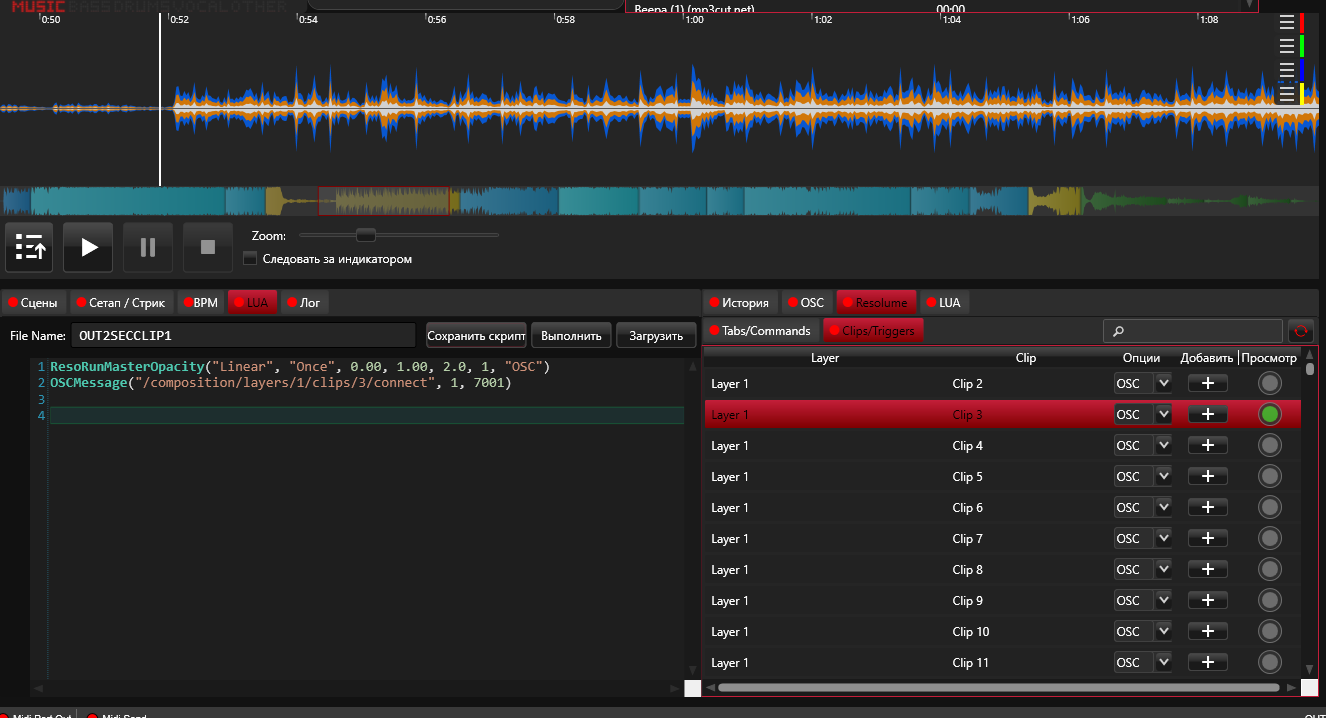
  • Add a layer trigger command (Clip/Trigger).
  • Ensure that the layer activation command and our LUA transparency command are triggered simultaneously.
  • The layer is activated in the background, and ResoRunMasterOpacity immediately resets brightness to 0 and begins to fade it up to 100%. Name your script and save it. You can test it by clicking "Execute".
Clip Trigger Logic
Synchronous layer trigger and smooth Opacity fade
Step 04

Timeline Integration

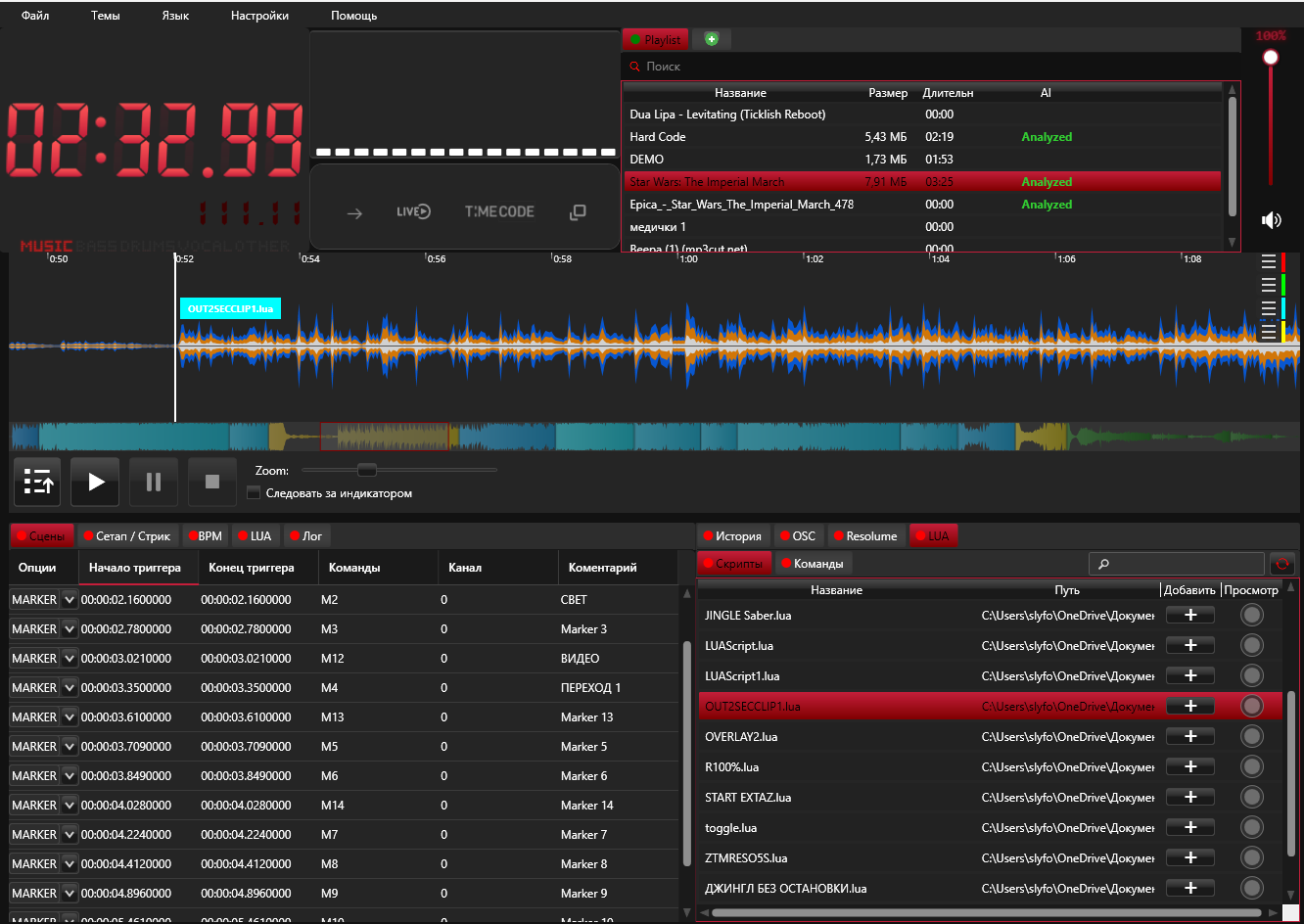
The saved micro-script turns into a fully functional control element.

  • Open the Lua and Scripts tab. Your script is now available for use.
  • Drag or add it to the timeline at the desired moment in your track.
💡 Pro Tip: Nested Macros LUA scripts can call other scripts. You can create a single global "End of Show" script that triggers a smooth Resolume blackout, resets all fixtures in GrandMA2, and fades out the audio all with one button!
LUA on the timeline
Adding the ready micro-script to the track